A Python Tutorial for Nuke
I have not found a post explaining how to create a Tracker node checkboxes tool or how to work with the Tracks knob in the Tracker node in Nuke using Python, so I thought I would write one. This post assumes that the reader has some familiarity with Nuke and a basic understanding of Python. It is also intended to help introduce some fundamental Python concepts more formally to those who are only somewhat familiar with the language and want to have a better understanding.
For those who want to continue learning Python, I highly recommend Automate The Boring Stuff With Python, which is available for free online.
You can download and use this tool by clicking this Nukepedia link. I would love to hear your comments, suggestions, or feedback. Thanks for reading!
Contents
1. Creating a tab in the Tracker node
2. Defining the Main Function
3. Using toScript() to Get the Number of Tracks
3.1 Why Use toScript()?
4. Setting the T, R, and S Boxes for Each Track
4.1 The Math Explained
5. Creating a One-Step Undo
6. Using try and finally
7. Applying the Settings to Selected Tracks
8. Applying the Settings to All Tracks
9. Adding the Function to the nuke Module
Concluding Words
1. Creating a tab in the Tracker node
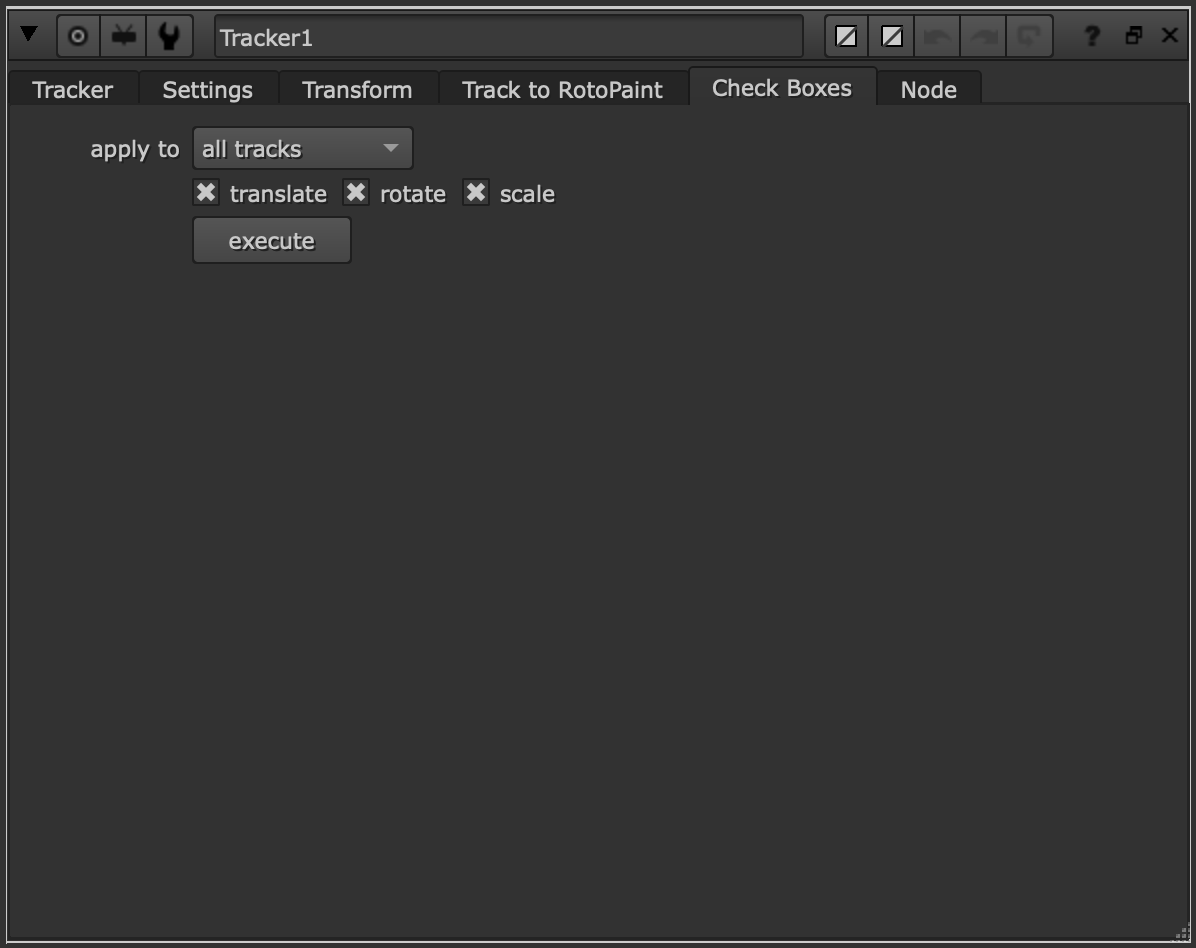
Python Code
import nuke

def tracker_checkboxes_tab():
    """This function creates a tab in the Tracker node
    that lets users choose which Tracker checkboxes, T
    (translate), R (rotate), and S (scale), to enable for
    all tracks or only the selected tracks."""

    # Define variables
    node = nuke.thisNode()

    # Check if UI has already been added
    if node.knob('check_tracker_boxes'):
        return

    # Create knobs
    tab = nuke.Tab_Knob('Check Boxes')

    scope_knob = nuke.Enumeration_Knob('scope',
                                       'apply to',
                                       ['all tracks',
                                        'selected tracks']
                                       )
    scope_knob.setFlag(nuke.STARTLINE)


    t_boolean_knob = nuke.Boolean_Knob(
        'translate_box',
        'translate',
        True
        )
    t_boolean_knob.setFlag(nuke.STARTLINE)

    r_boolean_knob = nuke.Boolean_Knob(
        'rotate_box',
        'rotate',
        True
        )

    s_boolean_knob = nuke.Boolean_Knob(
        'scale_box',
        'scale',
        True
        )

    pyknob = nuke.PyScript_Knob(
        'check_tracker_boxes',
        'execute',
        'import nuke\nnuke.tracker_checkboxes()'
        )
    pyknob.setFlag(nuke.STARTLINE)

    # Add knobs
    node.addKnob(tab)
    node.addKnob(scope_knob)
    node.addKnob(t_boolean_knob)
    node.addKnob(r_boolean_knob)
    node.addKnob(s_boolean_knob)
    node.addKnob(pyknob)

nuke.addOnCreate(
        tracker_checkboxes_tab,
        nodeClass='Tracker4'
        )
Explanation
The code defines a function that creates a tab in the Tracker node. This tab contains:
one enumeration knob
three Boolean knobs
one button
The enumeration knob lets the user choose whether the tool applies to all tracks or only selected tracks. The Boolean knobs let the user choose whether to enable T (translate), R (rotate), and S (scale). The button executes a block of code when clicked.
The code begins with:
import nuke
nuke.thisNode()
Notice how nuke comes before thisNode(). Without importing the nuke module, we would not be able to use the thisNode() function.
In the line below, I define a function that will create a new tab in the Tracker node:
def tracker_checkboxes_tab():
A function is a reusable block of code designed to perform a specific task. Once we define it, we can call it whenever we want Python to perform that task. In this case, the function builds the custom tab and its controls inside the Tracker node.
We can name a function whatever we like, but according to PEP 8, Python’s official style guide, function names should be written in lowercase and use underscores instead of spaces. That is why this function is named tracker_checkboxes_tab().
Right below the function definition is a docstring:
    """This function creates a tab in the Tracker node
    that lets users choose which Tracker checkboxes, T
    (translate), R (rotate), and S (scale), to enable for
    all tracks or only the selected tracks."""
node = nuke.thisNode()
You can think of a variable as a box in the computer’s memory that stores a value. In this case, the variable:
node =
stores the value:
nuke.thisNode()
which gets the current node. In this case, it gives us the Tracker node we are working with so that we can add knobs to it.
The next lines check whether the custom user interface has already been added:
    if node.knob('check_tracker_boxes'):
        return
This prevents the tab and knobs from being added more than once. If the node already contains a knob named check_tracker_boxes, the function stops running.
Below that, a comment appears:
# Define variables
tab = nuke.Tab_Knob('Check Boxes')
Next, I create an enumeration knob:
    scope_knob = nuke.Enumeration_Knob('scope',
                                       'apply to',
                                       ['all tracks',
                                        'selected tracks']
                                       )
An Enumeration_Knob gives the user a list of preset options to choose from. Here, it lets the user decide whether the tool should apply to all tracks or only selected tracks.
The next three variables create Boolean knobs, or checkboxes:
    t_boolean_knob = nuke.Boolean_Knob(
        'translate_box',
        'translate',
        True
        )
    r_boolean_knob = nuke.Boolean_Knob(
        'rotate_box',
        'rotate',
        True
        )
    s_boolean_knob = nuke.Boolean_Knob(
        'scale_box',
        'scale',
        True
        )
Boolean values, named after the mathematician George Boole, are either True or False. In this tool, True means the checkbox is checked, and False means it is unchecked.
Next, the code creates a button:
    pyknob = nuke.PyScript_Knob(
        'check_tracker_boxes',
        'execute',
        'import nuke\nnuke.tracker_checkboxes()'
        )
A PyScript_Knob creates a button that runs Python code when clicked. In this case, clicking the button runs nuke.tracker_checkboxes().
The code also uses STARTLINE to control the layout of the knobs:
    scope_knob.setFlag(nuke.STARTLINE)
    t_boolean_knob.setFlag(nuke.STARTLINE)
    pyknob.setFlag(nuke.STARTLINE)
STARTLINE places a knob on a new line in the interface. This helps organize the layout of the custom tab.
After creating the knobs, the code adds them to the node:
    node.addKnob(tab)
    node.addKnob(scope_knob)
    node.addKnob(t_boolean_knob)
    node.addKnob(r_boolean_knob)
    node.addKnob(s_boolean_knob)
    node.addKnob(pyknob)
    nuke.addOnCreate(
            tracker_checkboxes_tab,
            nodeClass='Tracker4'
            )
2. Defining the Main Function
Python Code
def tracker_checkboxes():
    """This function checks the T (translate), R (rotate), and S (scale)
    checkboxes in the Tracker node for all tracks or the selected tracks."""

    # Define variables
    node = nuke.thisNode()
    knob = node['tracks']
    num_columns = 31
    col_translate = 6
    col_rotate = 7
    col_scale = 8
    scope = node.knob('scope').value()
    selected_only = (scope == 'selected tracks')
    translate_knobvalue = bool(node.knob('translate_box').value())
    rotate_knobvalue = bool(node.knob('rotate_box').value())
    scale_knobvalue = bool(node.knob('scale_box').value())
Explanation
The code above defines the main function that checks or unchecks the T (translate), R (rotate), and S (scale) checkboxes in the Tracker node. It also defines the variables used throughout the function.
In the code below, I define the main function and describe what it does with a docstring:
    def tracker_checkboxes():
        """This function checks the T (translate), R (rotate), and S (scale)
        checkboxes in the Tracker node for all tracks or the selected tracks."""
This function reads the user’s settings from the custom tab and applies them to the tracks in the Tracker node.
Next, I define the variables used in the function:
    node = nuke.thisNode()
    knob = node['tracks']
    num_columns = 31
    col_translate = 6
    col_rotate = 7
    col_scale = 8
    scope = node.knob('scope').value()
    selected_only = (scope == 'selected tracks')
    translate_knobvalue = bool(node.knob('translate_box').value())
    rotate_knobvalue = bool(node.knob('rotate_box').value())
    scale_knobvalue = bool(node.knob('scale_box').value())
Personally, I like to start off by defining all of my necessary variables upfront, as I find it makes it easier to refer to them later on.
The variable node stores the current Tracker node, and knob stores the tracks knob, which contains the track data.
The variables num_columns, col_translate, col_rotate, and col_scale describe how the track data is organized inside the tracks knob. Each track uses 31 columns, and the T, R, and S values are stored at specific column positions.
The scope variable gets the value of the custom menu in the tab. The variable selected_only checks whether the user chose selected tracks.
The variables translate_knobvalue, rotate_knobvalue, and scale_knobvalue store the values of the three Boolean knobs and determine whether T, R, and S should be checked or unchecked.
3. Using toScript() to Get the Number of Tracks
Python Code
    # Get number of tracks from toScript
    script = node['tracks'].toScript()
    total_tracks = script.count('\"track ')
    if total_tracks <= 0:
        nuke.message('No tracks found on this Tracker node.')
        return
Explanation
Say an artist has four tracks in their Tracker node and wants all four tracks to have their T, R, and S boxes checked. To find the total number of tracks, the code uses toScript(). The toScript() method converts the contents of the tracks knob into script text.
script = node['tracks'].toScript()
The image below shows the tracks knob in Nuke:
The code then counts how many times ‘track ’ appears in that text:
total_tracks = script.count('\"track ')
By counting how many times ‘track ’ appears and storing that number in the variable total_tracks, the code gets the total number of tracks in the Tracker node. If an artist has four tracks in the Tracker node, the script text generated by toScript() will contain four track entries. Counting those entries gives us a value of 4, which is then stored in total_tracks.
If no tracks are found, Nuke displays the message:
    if total_tracks <= 0:
        nuke.message('No tracks found on this Tracker node.')
        return
“No tracks found on this Tracker node,” and the function stops running.
3.1 Why Use toScript()?
Using the toScript() method allows the tool to determine the number of tracks automatically. This is more user-friendly than asking the artist to type in the number of tracks manually. That said, while this is the method I chose to use to get the number of tracks from the Tracker node, it works by reading the serialized text stored in the tracks knob and counting the track entries in that text, so it is not the most elegant solution.
Before settling on toScript() as a way to count the track entries, I explored the tracks knob to see whether there was a more direct way to get the number of tracks. Based on the image below and my investigations in the Script Editor in Nuke:
you can see that the tracks knob in the Tracker node is a Table_Knob. Unfortunately, there is no information about Table_Knob in the Nuke Python API. So, in order to figure out how to get the number of tracks in the Tracker node, we have to explore its methods using print dir(selectedNode[‘tracks’]). I went through the methods in that list but did not find one that directly tells us how many tracks there are in the Tracker node.
4. Setting the T, R, and S Boxes for Each Track
Python Code
    # Set T, R, and S for a specific track index
    def set_trs(track_index):
        if translate_knobvalue is True:
            knob.setValue(1, num_columns * track_index + col_translate)
        else:
            knob.setValue(0, num_columns * track_index + col_translate)

        if rotate_knobvalue is True:
            knob.setValue(1, num_columns * track_index + col_rotate)
        else:
            knob.setValue(0, num_columns * track_index + col_rotate)

        if scale_knobvalue is True:
            knob.setValue(1, num_columns * track_index + col_scale)
        else:
            knob.setValue(0, num_columns * track_index + col_scale)

    # Math = (True (1) or False (0), 31 columns * track number (0 to infinity)
    # + Translate (6), Rotate (7), or Scale (8))
Explanation
The code above defines a helper function called set_trs():
def set_trs(track_index):
This function sets the T (translate), R (rotate), and S (scale) boxes for one specific track at a time. The track_index argument tells the function which track to modify.
Inside the function, the code checks whether the custom Boolean knobs are set to True or False. If a knob is True, the code sets the checkbox value to 1, which checks the box. If a knob is False, the code sets the value to 0, which unchecks the box. For example:
        if translate_knobvalue is True:
            knob.setValue(1, num_columns * track_index + col_translate)
        else:
            knob.setValue(0, num_columns * track_index + col_translate)
In other words, this function takes the artist’s choices from the custom tab and applies them to a single track.
4.1 The Math Explained
Python Code
    # Math = (True (1) or False (0), 31 columns * track number (0 to infinity)
    # + Translate (6), Rotate (7), or Scale (8))
Explanation
The tracks knob stores its data in columns. Each track uses 31 columns, and the T, R, and S values are stored at specific column positions. The T (Translate) column is 6, the R (Rotate) column is 7, and the S (Scale) column is 8.
So, for example, if we want to set the Translate box for a track, the code uses:
knob.setValue(1, num_columns * track_index + col_translate)
Take the track number, multiply it by the total number of columns, and then add the column number for Translate. The same idea is used for Rotate and Scale.
If the value is 1, the box is checked. If the value is 0, the box is unchecked.
5. Creating a One-Step Undo
Python Code
    # One-step undo
    u = nuke.Undo()
    u.begin('Tracker4: Set T, R, and S checkboxes')
Explanation
The code creates a one-step undo. This means that when the artist runs the tool, all of the checkbox changes can be undone in a single step rather than one at a time.
6. Using try and finally
Python Code
try:

    # Selected tracks
    if selected_only:

        . . .

        return

    # All tracks
    for i in range(total_tracks):
        set_trs(i)

finally:
    u.end()
Explanation
The try block contains the code that applies the checkbox settings to either the selected tracks or all tracks.
In this case, the try block works with the undo block created earlier:
    u = nuke.Undo()
    u.begin('Tracker4: Set T, R, and S checkboxes')
The try block begins here. In this case, it is used so that the undo block will be properly closed, even if the function stops early.
    finally:
        u.end()
The finally block always runs, even if the function stops early. This is important because several parts of the code use return to stop the function when something goes wrong, such as when no tracks are selected or no valid selected tracks are found.
By placing u.end() inside the finally block, we make sure Nuke closes the undo operation properly.
7. Applying the Settings to Selected Tracks
Python Code
    # Selected tracks
    if selected_only:

        # Guard: selected_tracks API not available in this node/Nuke version
        if not node.knob('selected_tracks'):
            nuke.message('This node does not have a knob called "selected_tracks".')
            return

        # Guard: no tracks selected in the Tracker UI
        sel = (node['selected_tracks'].value() or '').strip()
        if not sel:
            nuke.message('No tracks selected.')
            return

        # Guard: selected_tracks string couldn't be parsed into integers
        try:
            idxs = [int(x) for x in sel.split(',') if x.strip() != '']
        except ValueError:
            nuke.message('Could not parse selected track indices.')
            return

        # Guard: clamp to valid range of integers, avoid duplicates
        idxs = sorted(set(i for i in idxs if 0 <= i < total_tracks))
        if not idxs:
            nuke.message('No valid selected tracks found.')
            return

        # Apply checkbox settings to each selected track
        for i in idxs:
            set_trs(i)
Explanation
This section runs only if the artist chooses selected tracks in the custom tab:
    # Selected tracks
    if selected_only:
The first check makes sure the Tracker node has a knob called selected_tracks:
    if not node.knob('selected_tracks'):
        nuke.message('This node does not have a knob called "selected_tracks".')
        return
If that knob does not exist, the function displays a message and stops running.
Next, the code checks whether any tracks are actually selected:
    sel = (node['selected_tracks'].value() or '').strip()
    if not sel:
        nuke.message('No tracks selected.')
        return
The selected_tracks knob stores the selected track information as text. The code gets that text, removes any extra whitespace with .strip(), and stores the result in the variable sel.
If sel is empty, that means no tracks are selected, so Nuke displays a message and the function stops running.
Next, the code tries to convert the selected track indices from text into integers:
    try:
        idxs = [int(x) for x in sel.split(',') if x.strip() != '']
    except ValueError:
        nuke.message('Could not parse selected track indices.')
        return
This line uses a list comprehension to create a list of integers from the selected track string. If the selected track values cannot be converted into integers, the function displays an error message and stops running.
After that, the code removes invalid track numbers and duplicate values:
    idxs = sorted(set(i for i in idxs if 0 <= i < total_tracks))
    if not idxs:
        nuke.message('No valid selected tracks found.')
        return
This leaves only valid selected track indices.
Finally, the code applies the checkbox settings to each selected track:
    for i in idxs:
        set_trs(i)
This for loop goes through each selected track and calls set_trs(i) for that track.
After the selected tracks have been processed, the function returns:
return
This prevents the code from continuing into the all-tracks section.
8. Applying the Settings to All Tracks
Python Code
    # All tracks
    for i in range(total_tracks):
        set_trs(i)
Explanation
If the artist does not choose selected tracks, the code applies the settings to all tracks instead.
The range(total_tracks) function generates a sequence of track numbers from 0 up to total_tracks - 1. The for loop then calls set_trs() for each track. This means the T, R, and S settings are applied to every track in the Tracker node.
9. Adding the Function to the nuke Module
Python Code
    # Add function to nuke module so PyScript_Knob can call it
    nuke.tracker_checkboxes = tracker_checkboxes
Explanation
At the end of the script, the function is added to the nuke module. This is important because the PyScript_Knob created earlier calls nuke.tracker_checkboxes() when the artist clicks the button.
By assigning the function to the nuke module, the button in the custom tab can access and run it.